
Introducing SmartSideAI — Your AI Excel-Formula Generator
That’s where SmartSideAI steps into you can simply describe what you want in plain English, and SmartSideAI will try to generates the correct Excel formula for you — ready to paste and go.
9/22/20254 min read

Introducing SmartSideAI — Your AI Excel-Formula Generator
Website: smartsideais.com
Try it now: SmartSideAI Application
Why the Need for an Excel Formula Generator?
Spreadsheets remain one of the most widely used tools for business, analysis, reporting and more. Yet, even with powerful tools like Microsoft Excel, crafting the right formula can be a major pain-point:
Many users know basics like SUM(), AVERAGE() or COUNT() but struggle when tasks require nesting, lookups or conditionals. DataCamp+2AbleBits+2
Formulas often go wrong because syntax is incorrect — missing parentheses, wrong references, misuse of relative/absolute addressing. Microsoft Learn+1
Time is wasted googling “how to write a nested IF”, “Excel lookup formula”, or “Excel formula for text cleanup”.
As users advance, they realise the wide variety of functions (hundreds!) make it overwhelming. GoSkills.com+1
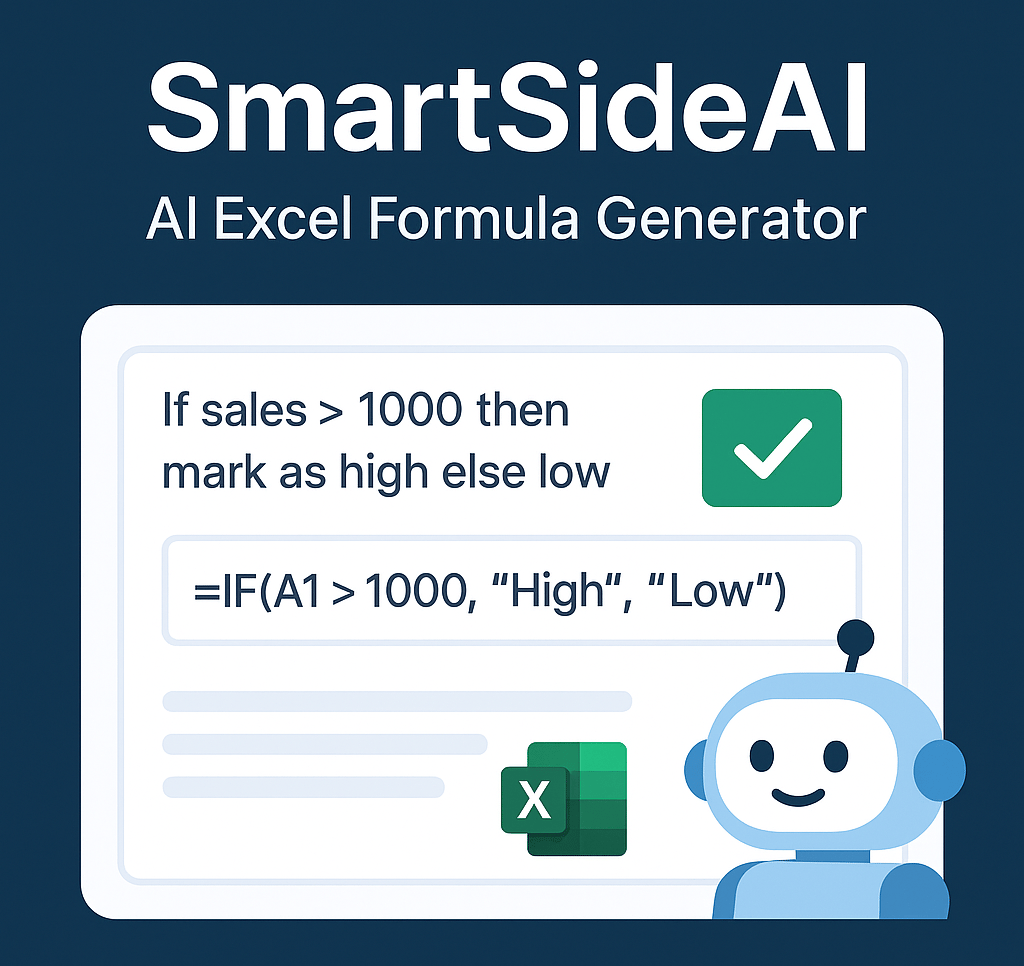
That’s where SmartSideAI steps in: you simply describe what you want in plain English (“If sales > 1000 mark as High, otherwise Low”, or “extract first name from full name”), and SmartSideAI generates the correct Excel formula for you — ready to paste and go.
What Problems Does SmartSideAI Solve?
Here’s how SmartSideAI helps you level up your Excel productivity:
Natural-language to formula: You don’t need to know Excel function names; just type your requirement and the system builds the formula.
Faster turnaround: Instead of spending minutes (or hours) constructing, testing and debugging formulas, you get ready-to-use output in seconds.
Reduced errors: The system handles syntax, function choice and references so you avoid common mistakes.
Learning by doing: You’ll see how the formula is composed, helping you learn Excel functions for future use.
Accessible to all levels: Whether you’re a beginner or advanced user, SmartSideAI fills a gap: from “I don’t know what formula to use” to “I can build that with confidence”.
Topics People Search for — and How SmartSideAI Helps
Based on research into commonly asked Excel questions and formula challenges, here are recurring topics and how SmartSideAI addresses them:
1. Basic formulas & functions
Users often search for: “Excel formulas for beginners”, “what are the most common Excel functions”.
For example: SUM(), AVERAGE(), COUNT(), MIN(), MAX(). DataCamp+1
🔹 SmartSideAI use case: “Show me how to total sales in column C if region = ‘West’” → returns something like =SUMIF(C:C,"West",D:D).
2. Conditional logic & nested formulas
Queries such as: “Excel IF with AND/OR”, “nested IF formula examples”. Corporate Finance Institute+1
🔹 SmartSideAI use case: “If profit > 5000 AND cost < 1000 then label ‘Good’ else ‘Review’” → gives =IF(AND(E2>5000,F2<1000),"Good","Review").
3. Lookup and reference functions
High volume of search traffic: “VLOOKUP vs INDEX MATCH”, “how to use XLOOKUP”. GoSkills.com+1
🔹 SmartSideAI use case: “Find employee name based on ID in column A” → returns =XLOOKUP(ID_cell,A:A,Name_column, "Not Found") or =INDEX(Name_column, MATCH(ID_cell, A:A, 0)).
4. Text manipulation / cleaning data
Topics: “Excel remove extra spaces”, “split full name into first and last name”. AbleBits
🔹 SmartSideAI use case: “From full name in A2 extract last name” → e.g., =RIGHT(A2, LEN(A2)-FIND(" ",A2)).
5. Data analysis & summing/filtering
Searches: “SUMIF multiple criteria”, “COUNTIFS Excel examples”. GoSkills.com+1
🔹 SmartSideAI use case: “Count number of orders >1000 made by region ‘East’” → =COUNTIFS(Orders,">1000", Region,"East").
6. Advanced functions & dynamic formulas
More advanced: “OFFSET with SUM”, “how to use LET, LAMBDA in Excel”. Corporate Finance Institute+1
🔹 SmartSideAI use case: “Create dynamic sum for last 3 months in column D” → e.g., =SUM(OFFSET(D2,COUNT(D:D)-3,0,3,1)) or similar.
How to Use SmartSideAI – Step-by-Step
Go to the app: SmartSideAI
Enter your requirement in plain English (e.g., “highlight duplicate names”, “calculate bonus if sales >10000”, “extract domain from email address”).
SmartSideAI returns an Excel formula + explanation if needed.
Copy the formula into your Excel sheet and adjust cell‐references if required.
(Optional) Use the explanation to learn how the formula works and modify it for future tasks.
Why SmartSideAI is a Game-Changer
Save time & frustration: No more “what function do I use?”, “why is my formula giving error?”.
Scale your Excel-skills: Even if you’re not a formula expert, you’ll sound like one.
Bridge the gap: Between “I know what I want” and “I know how to build it” in Excel.
Get confident: As you understand formula logic, you’ll gain confidence and better outcomes.
Ideal for many roles: Analysts, marketers, operations, finance, students — anyone working with spreadsheets.
SEO Tips for Your Blog & Site
To maximise visibility (for keywords like Excel formulas, Excel formula generator, AI Excel formula tool), consider the following:
Use a catchy title: “Generate Excel Formulas Fast with SmartSideAI – AI Formula Assistant”.
Include keywords throughout: “Excel formula generator”, “Excel formulas for beginners”, “convert plain English to Excel formula”, “AI Excel tool”.
Use sub-headings (H2/H3) that incorporate these terms: e.g., “Common Excel formulas you should know”, “How SmartSideAI generates Excel formulas automatically”.
Provide value: show examples, real-life use cases, and call-to-action (CTA) to your app.
Internal link: link to your application page using anchor text like “Try SmartSideAI – Excel formula generator”.
Meta description suggestion: “SmartSideAI turns your plain English into working Excel formulas instantly. Save time, avoid errors and boost spreadsheet productivity.”
Alt-text for images: e.g., “SmartSideAI Excel formula generator interface”, “AI-powered Excel formula tool screenshot”.
Final Thoughts
If you’re tired of wrestling with Excel formulas, guessing which function to use or why your formula returns the wrong value — it’s time to make the switch. SmartSideAI is not just another tool: it’s your personal Excel‐formula co-pilot.
Whether you’re cleaning data, building dashboards, doing SEO reporting, financial modelling or just automating repetitive tasks — you’ll find SmartSideAI invaluable.
👉 Get started now: Try SmartSideAI and see how quickly you can turn your English Excel-intent into working formulas.
Thanks for reading! We’d love to hear about your formula challenges — drop your questions or favourite use-cases in the comments below.
Efficiency
Transform your data management with AI-powered formulas.
Support
Contact Us
© 2025. All rights reserved.